
Important note: to change your device settings, you need to connected to your Device, make sure your Connectivity Widget is Active before changing any settings!
Your VX360 device can connect to up to 10 different Wi-Fi, to ensure you can upload footage from wherever you park your car!
Important: you need to be nearby your device to save or remove a Wi-Fi. Changes will be reflected after 1 hour.
To Add a New Wi-Fi:
- Open the Side menu
- Tap on Device Settings
- Tap on Configure Wi-Fi
- Select your Wi-Fi network in the Connect to new Wi-Fi section:
- Use a stable and fast Wi-Fi connection for optimal performance.
- VX360 is only compatible with 2.4 GHz Wi-Fi networks.
- iOS users: Due to system restrictions, you can only select the Wi-Fi your phone is currently connected to. To choose a different network, first connect your phone to the desired Wi-Fi in your device settings.
- Enter your Wi-Fi password: If you don’t remember it, you can copy and paste it from your phone’s settings.
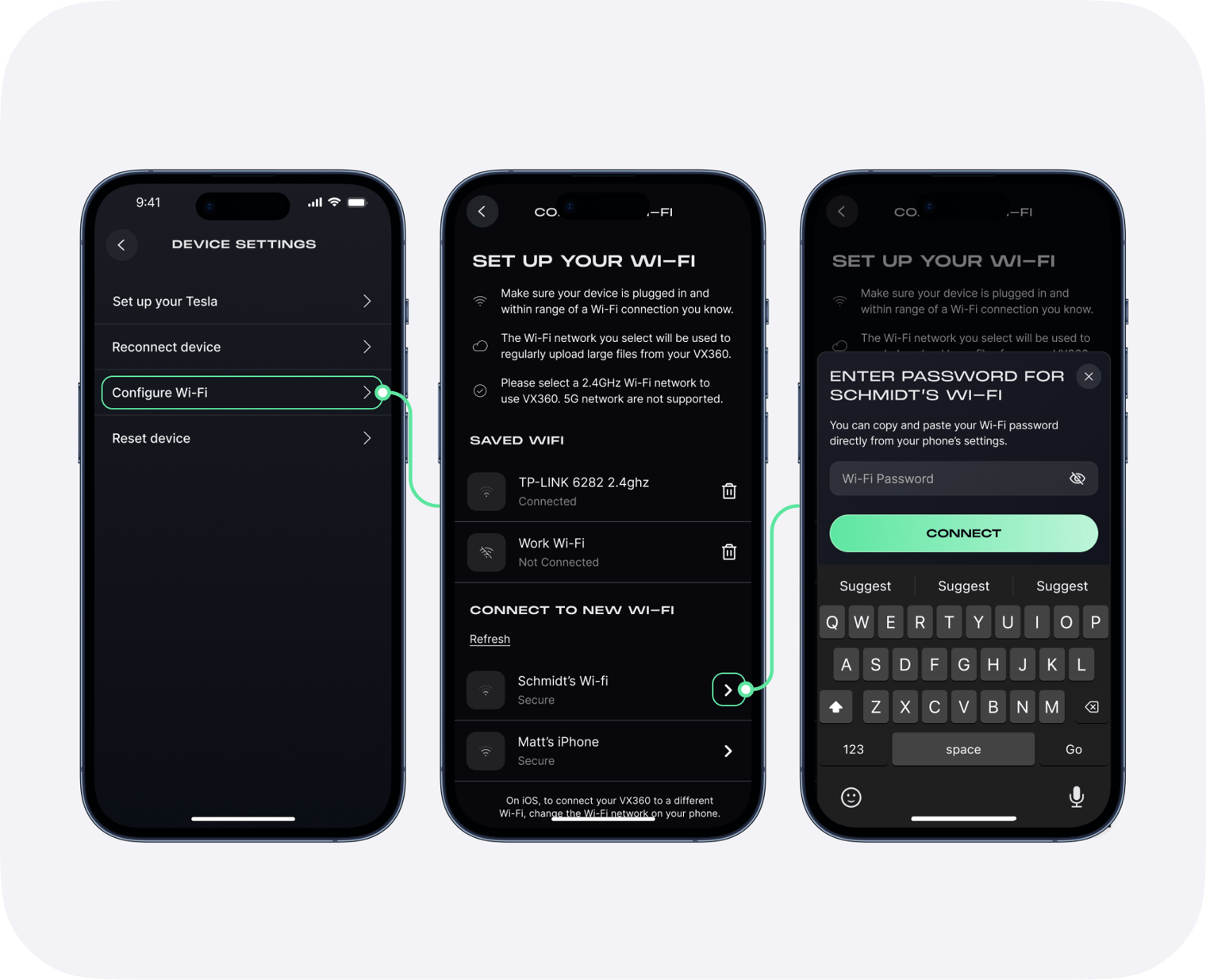
If you have any issues to connect to your Wi-Fi:
- Make sure you have selected a 2.4 GHz Wi-Fi network (5 GHz networks are not supported).
- Check that your Wi-Fi security settings are not set to WPA3.
- Ensure Location Permission have been set to "Always" for the VX360 app. More information here.
- iOS users: Confirm your phone is connected to the correct Wi-Fi network.
- Double-check that you’ve entered the correct Wi-Fi password.
- Tap on Refresh button
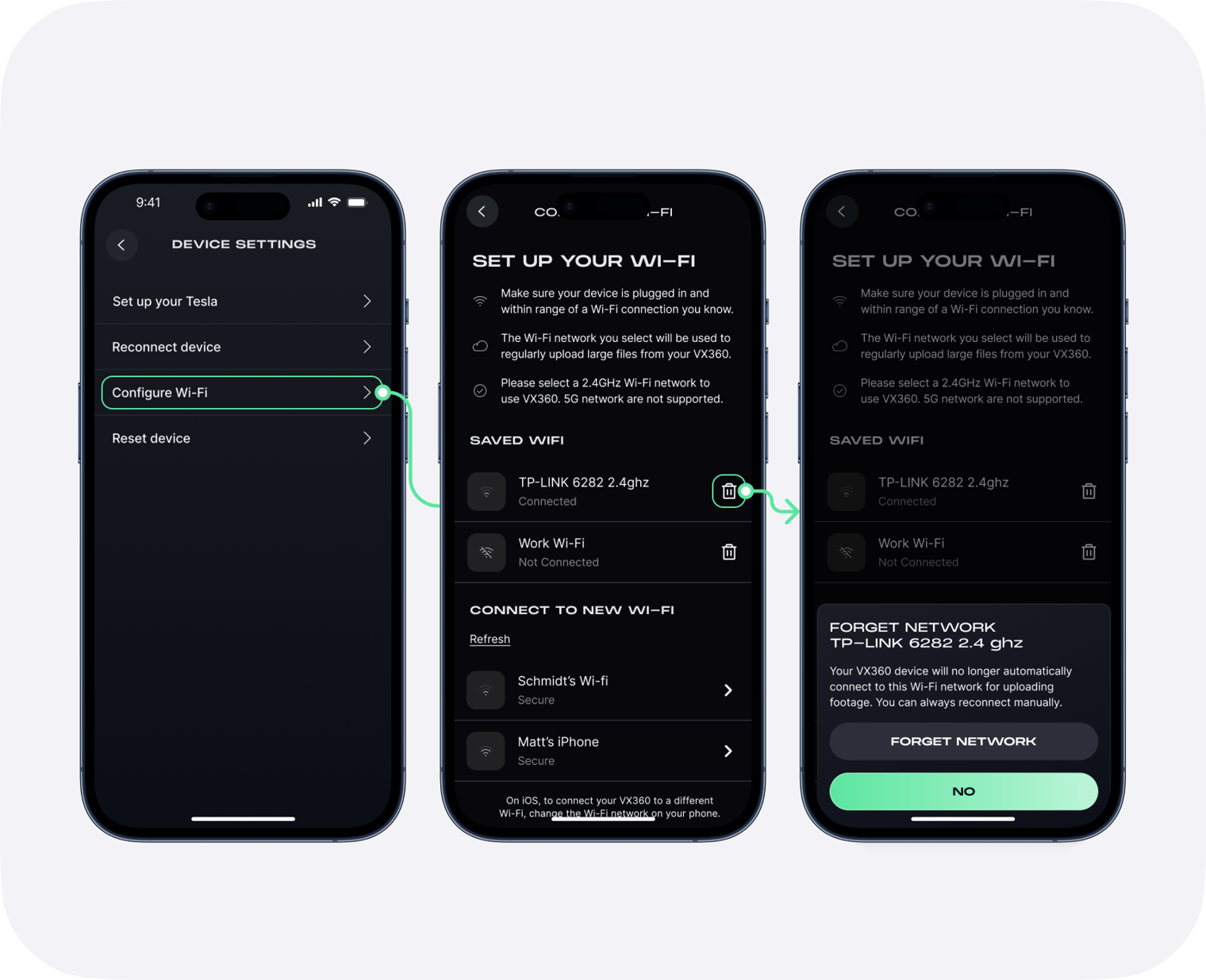
To Remove a Saved Wi-Fi
Removing a saved Wi-Fi can be useful if you've hit the 10 saved Wi-Fi limit or if you want to change the saved password of a saved Wi-Fi.
- Tap on the "bin" icon next to the Saved Wi-Fi
- Confirm your choice by tapping on "Forget Network"
Comments
1 comment
The “bin” icon to delete saved networks isn’t present in my app. Nor is landscape mode as depicted in the photos. All of this tech support info is based off of a version of the software that we don’t have yet.
Article is closed for comments.