
Connectivity Widget
Although your phone is not required for data collection, here's how you can check if your phone is connected to your VX360.
The Connectivity Widget on the Home screen shows the connection status between your phone and your VX360 device. It ensures seamless communication so you can drive, collect footage, and earn rewards without interruption.
Check Connectivity Status
The Connectivity Widget displays three possible states:
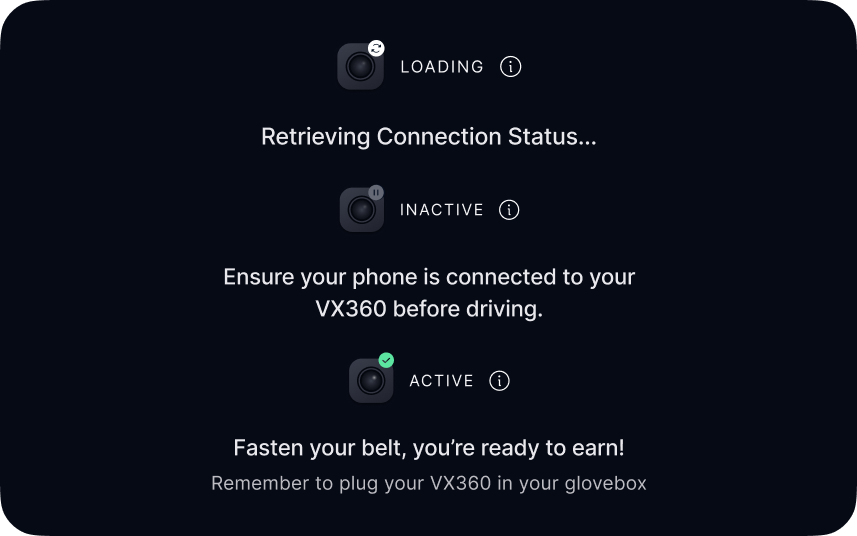
- Loading: The system is checking the connection status. Please wait a few seconds while it updates.
- Active: Your phone is connected to your VX360 device. You’re ready to drive, collect footage, earn rewards, and manage your device settings.
- Inactive: Your phone is not currently connected to your VX360 device.
While you won’t earn rewards or be able to manage device settings during this time, your device can still upload any pending footage to the Cloud, and you can continue to access your footage via the app.
To stay connected to your device
- Ensure Bluetooth is enabled in your phone's settings
The device won't show up in your Bluetooth Device list.
Currently, the only indicator of a successful connection is the Active status
- Ensure Location is turned on in your phone's system settings
- Make sure your phone has an active internet connection while driving (Mobile data).
- Keep your phone within 2 meters of your powered VX360 device - place it on the center console/charging pad or use a phone mount. Avoid keeping it in your pants, bag, or jacket.
- In your Tesla dashboard turn the Sentry mode on or Controls > Charging > Keep Accessory Power On. This ensures your device stays powered
Comments
0 comments
Article is closed for comments.